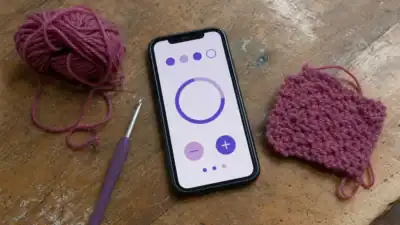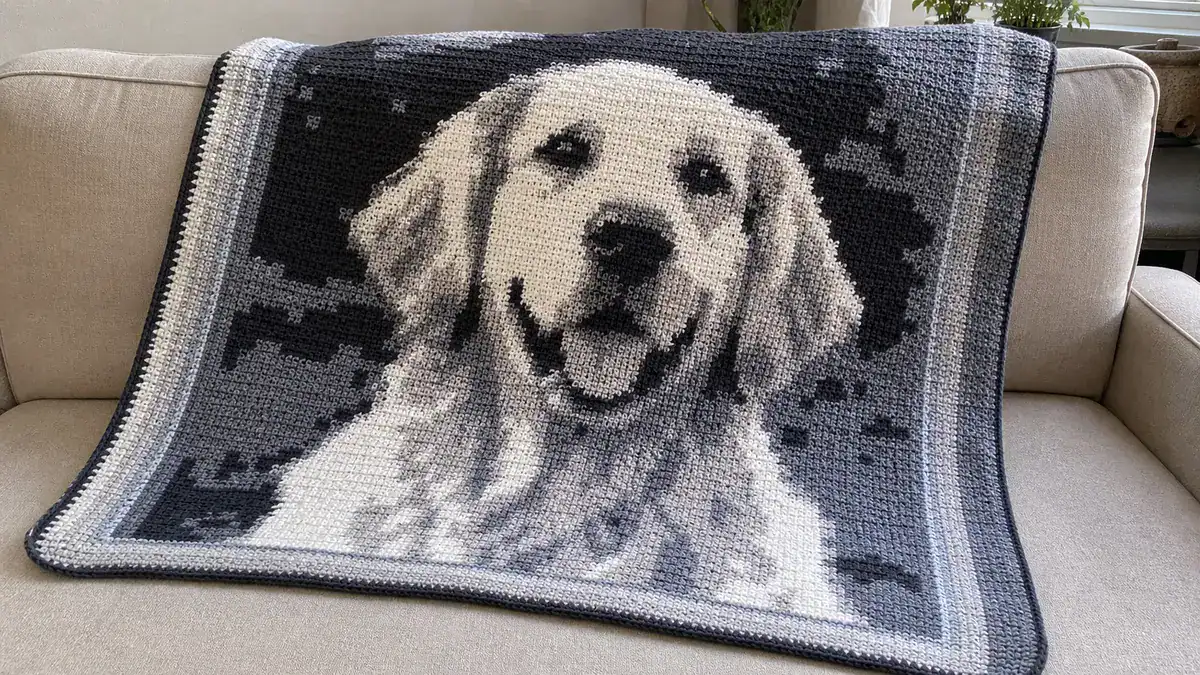
If you’ve ever looked at a photo — a pet portrait, a favorite character, a family snapshot — and thought, I want to make that into a blanket, the Wooltasia crochet app is probably already on your radar. The idea is genuinely exciting: upload an image, set your gauge, choose your yarn colors, and walk away with a row-by-row graphghan chart.
Don't lose this article. Enter your email below, and I'll send it to you right now. Plus a little crochet inspiration from me, straight to your inbox.
But as any maker who has wrestled with a dozen tangled bobbins will tell you, the reality is a little more nuanced than that. That’s exactly what most app overviews skip over. This guide covers what Wooltasia actually does, which images convert well (and which will frustrate you), and how to troubleshoot your chart before you’ve wound a single bobbin.
What Is Wooltasia?
Wooltasia is a graphghan chart generator — a tool that converts a photograph or digital image into a color-block grid you can follow stitch by stitch. It was originally built as an Android app by a husband-and-wife team in Germany, and it remains one of the most-used tools in the graphghan community for exactly that purpose.
The app works for tapestry crochet (the most common use), pixel crochet, and filet crochet. It can also generate charts for knitting and cross-stitch, so if you have crafty friends who don’t crochet, they can use it too.
One significant update since the app first launched: Wooltasia has transitioned to a web-based platform called “Wooltasia Next” at web.wooltasia.app. If you’ve been holding off because you have an iPhone or prefer working from a laptop, this is fantastic news. It runs directly in your browser and can be saved to your home screen like a regular app. The legacy Android app is still available on Google Play (Get the Wooltasia Android app), but the web version is where the developers are focusing their future updates.
How the App Works
The basic workflow is straightforward once you know what each step is asking for:
- Choose your image. Upload a photo from your phone library or device. This is where most people run into trouble — more on that below.
- Crop and adjust. You can rotate, scale, and crop the image inside the app. Use this to eliminate busy backgrounds and center the subject you actually want to stitch.
- Enter your gauge. The app uses your stitch and row gauge to calculate proportions, so your finished blanket comes out the right shape. Don’t skip this step! A square image stitched at the wrong gauge will come out rectangular. Always make a quick swatch first.
- Choose your colors. This is the step that makes or breaks the chart. You select the yarn colors you want to use, and the app maps the image tones to those colors. Fewer colors almost always produce a cleaner, more stitchable result.
- Review the project summary. The app generates a summary showing how many stitches you’ll need in each color. This is genuinely useful for yarn planning before you buy anything.
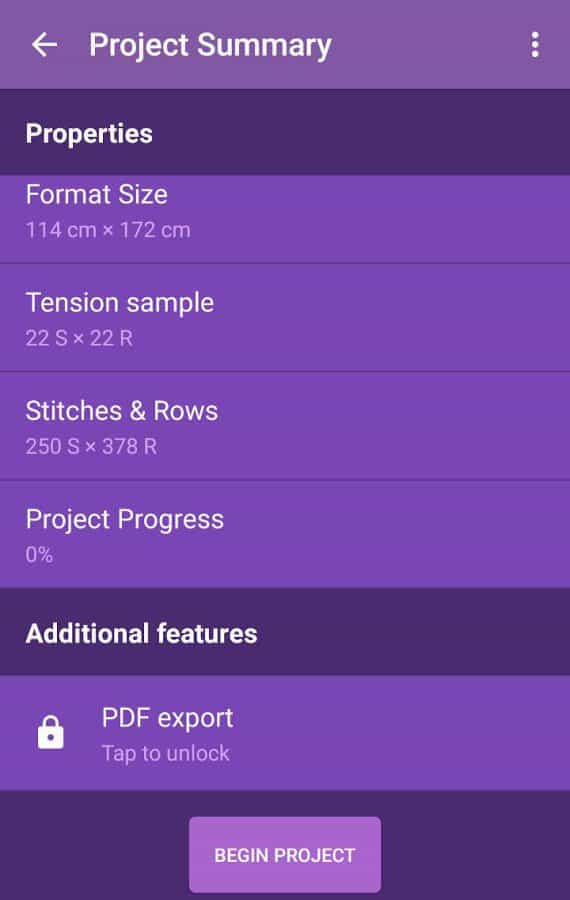
Once you’re working on the project, the app tracks your progress row by row, showing you how many stitches to work in each color as you go. That’s the part that makes it genuinely useful as a working tool rather than just a chart generator.
Is Your Image a Good Candidate for Wooltasia?
The most common frustration people run into — and the thing most app descriptions don’t tell you — is that not every photo converts into a usable chart. The app can only work with what you give it. Here’s a quick guide to what tends to work and what tends to produce a muddy, unworkable result.
| Image Type | How It Converts | Practical Tip |
|---|---|---|
| High-contrast photo (dark subject, light background) | Converts very well | This is the ideal starting point. Silhouettes and bold shapes translate cleanly into a small number of colors. |
| Low-contrast or hazy photo | Often produces muddy results | Boost contrast in your phone’s photo editor before uploading. Even a small adjustment makes a big difference. |
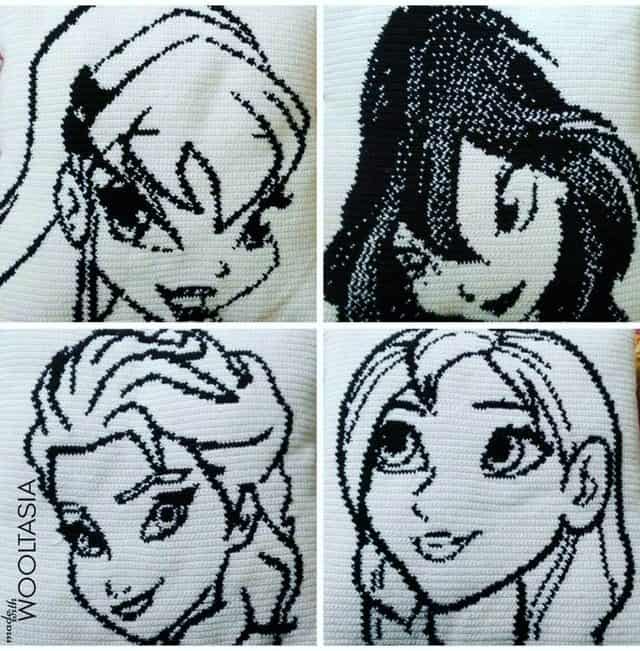
| Simple bold shapes or logo | Converts very well | Team logos, simple icons, and cartoon characters with clear outlines are some of the easiest images to work with. |
| Complex or busy background | Difficult — background competes with subject | Crop tightly to isolate the subject, or use a photo editing app to replace the background with a solid color first. |
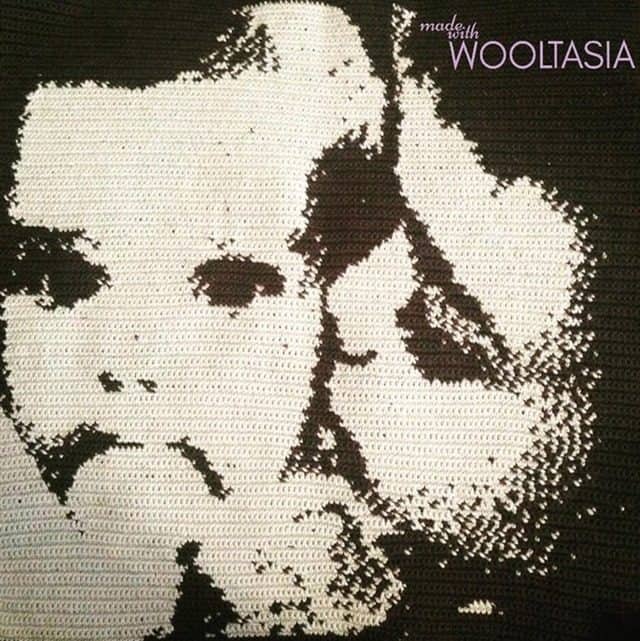
| Portrait or face | Possible but requires careful color selection | Limit yourself to 4–6 colors maximum. Skin tones are hard to reduce — a stylized or high-contrast portrait photo works better than a casual snapshot. |
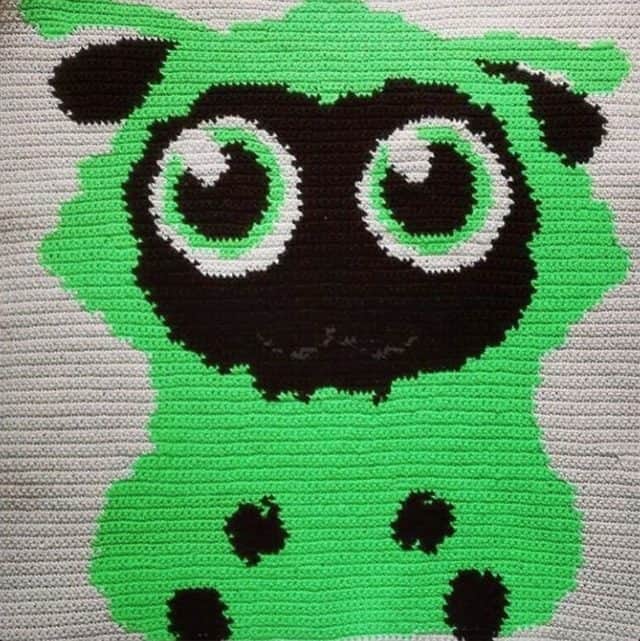
| Cartoon or clip art | Converts very well | Flat colors with clear outlines are exactly what the app handles best. These often need very little adjustment. |
The color reduction step is where most new users get stuck. It’s tempting to add more colors to capture every shade in a photo, but a chart with 15 yarn colors is genuinely difficult to stitch and a nightmare to manage your bobbins. Start with fewer colors than you think you need — you can always experiment with adding one or two more.
What Can You Make With It?
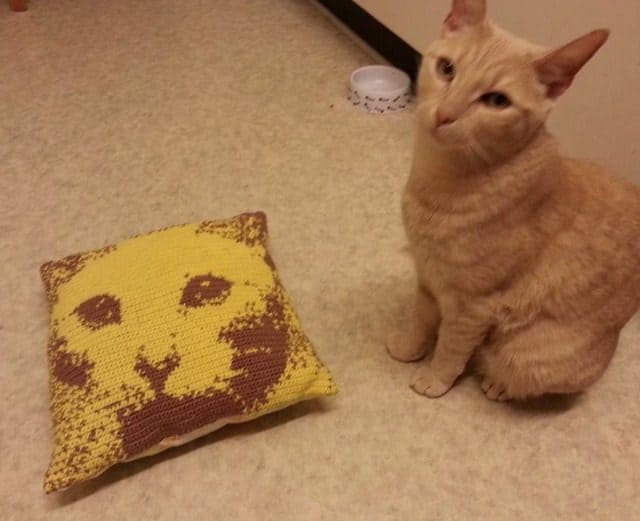
Graphghans are the most obvious application — large blankets worked in tapestry crochet that display an image when you step back from them. But the charts Wooltasia generates work for smaller projects too: pillows, wall hangings, bags, and even individual squares for a sampler blanket.
Don't lose this article. Enter your email below, and I'll send it to you right now. Plus a little crochet inspiration from me, straight to your inbox.
Corner-to-corner crochet (C2C) is also fully supported. That was listed as a planned future feature when the app first launched, and it’s now part of the standard workflow — a useful option if you prefer the diagonal stitch structure and slightly faster pace of C2C over row-by-row tapestry.
A Few Things Worth Knowing Before You Download
It’s not a pattern library. Wooltasia generates charts from your own images — it doesn’t have a built-in collection of ready-made graphghan patterns to browse. If you’re looking for pre-made graphghan patterns, that’s a different search. What Wooltasia does is let you bring your own image to the process, which is a genuinely different kind of tool.
The shift to Wooltasia Next. As mentioned earlier, the developers have moved to a web app model. You don’t need to go through an app store to get it; just visit the website on your phone or computer and add it to your home screen. This means it now works seamlessly across all devices, including iOS.
Wooltasia Beads. There is a companion app called Wooltasia Beads for people who work with fusion beads. At the time of the original interview, it was only available in euro-currency countries due to tax complications — that situation may have changed, so it’s worth checking the current app store listing if that’s relevant to you.
The Community Behind the App
One of the things that makes Wooltasia more than just a utility app is the community that’s grown around it. There’s an active English-language Facebook group and a German Facebook group where people share finished projects, troubleshoot tricky images, and show off what they’ve made.
The German group has historically been the more active of the two, and both are worth joining if you want to see what the app can produce in the hands of experienced users. You can also follow along on Instagram and the Wooltasia Facebook page for project inspiration.

The creators’ own favorite project made by a community member? A small blanket featuring the Wooltasia mascot, gifted to them by a Facebook group admin. It’s a good reminder that the best graphghan subject is often something that means something to the person stitching it.
Is Wooltasia the Right Tool for Your Project?
If you have a specific image you want to turn into a crochet project and you’re comfortable with tapestry crochet or C2C, Wooltasia is one of the most practical tools available for that exact job. It handles the math, tracks your progress, and gives you a yarn estimate before you commit to buying supplies.
It works best when you go in with a clean, high-contrast image and a realistic color count. If you’re hoping to recreate a detailed photograph with all its original shading, you’ll likely need to simplify your expectations — or your image — before the chart becomes something you can actually stitch.
For more on crochet apps worth knowing about, see our roundup of crochet and yarn apps.